AI Projects
An AI Project is the organisational and budgetary container for your AI usage in the Cloud Services Portal. Each project isolates its own resources — providers, models, budget, and limits — and all API Keys created inside a project inherit these settings.
AI Projects are independent of OpenStack: you do not need an OpenStack project, flavor, or quota to create or use an AI Project.
Only users with the Admin role can create AI Projects. After creating a project, the Admin invites existing Portal Users into it; those users can then create their own API Keys inside the project.
Prerequisites
- The Admin role in the Cloud Services Portal. Regular users cannot create projects — an Admin must create the project and invite them first.
- Permission to access the AI menu.
- (Optional) An idea of which providers, models, budget, and limits you want to scope the project to — all of these are optional and can be left empty for unlimited access.
Create an AI Project
There are two ways to create an AI Project, depending on which AI section you start from:
- From AI Projects Management — click Create AI Project. This wizard includes the Budget and Limits fields, so use it when you want to cap the project's keys.
- From Key Management — click Create Project. This is a basic wizard without the Budget and Limits fields, for quick project creation.
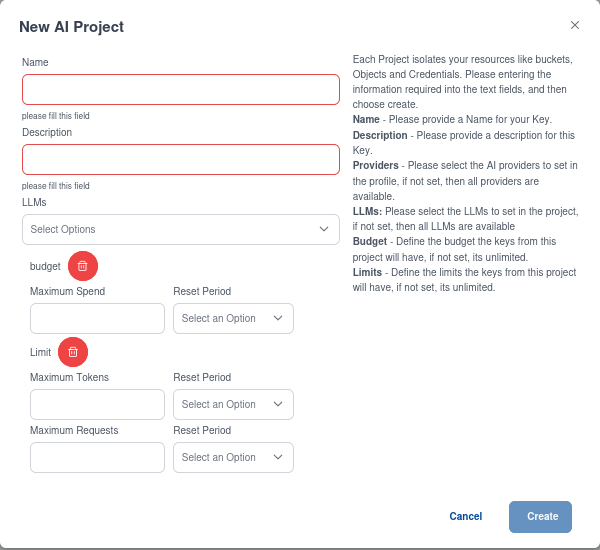
Each Project isolates your resources like buckets, objects, and credentials. Fill in the required fields, then choose Create.
| Field | Description | In Create AI Project (Projects Management) | In Create Project (Key Management) |
|---|---|---|---|
| Name | Provide a name for the project. | ✅ | ✅ |
| Description | Provide a description for this project. | ✅ | ✅ |
| Providers | Select the AI providers to set in the profile. If not set, all providers are available. | ✅ | ✅ |
| LLMs | Select the LLMs to set in the project. If not set, all LLMs are available. | ✅ | ✅ |
| Budget | Define the budget the keys from this project will have. If not set, it is unlimited. | ✅ | — |
| Limits | Define the limits the keys from this project will have. If not set, it is unlimited. | ✅ | — |
Project vs. key type
Providers, LLMs, Budget, and Limits are defined at the project level. Keys created inside the project — Project User-bound and Project-shared keys — inherit these restrictions. To give a different team or agent its own budget or model set, create a separate project for it.
Personal API Keys and Client Keys are not bound to a project and therefore do not inherit a project's settings. See API Key Types for which type to use when.
Change Client Limits
Client Admins can set client-wide limits that apply to the whole client, not to individual projects. This is available from both AI sections:
- In AI Projects Management — click Change Client Limits.
- In Key Management — click Change Client Limit.
Both buttons open the same function. Use it to cap consumption at the client level, above any per-project budgets and limits.
Invite Users to a Project
A newly created project has no users yet — only the Admin who created it can see it. To let other Portal Users create keys in the project, the Admin must invite them.
- Go to AI → AI Projects Management.
- Select the AI Project.
- Switch to the Users view.
- Click Add User.
- Select one or more existing Cloud Services Portal users.
- Confirm.
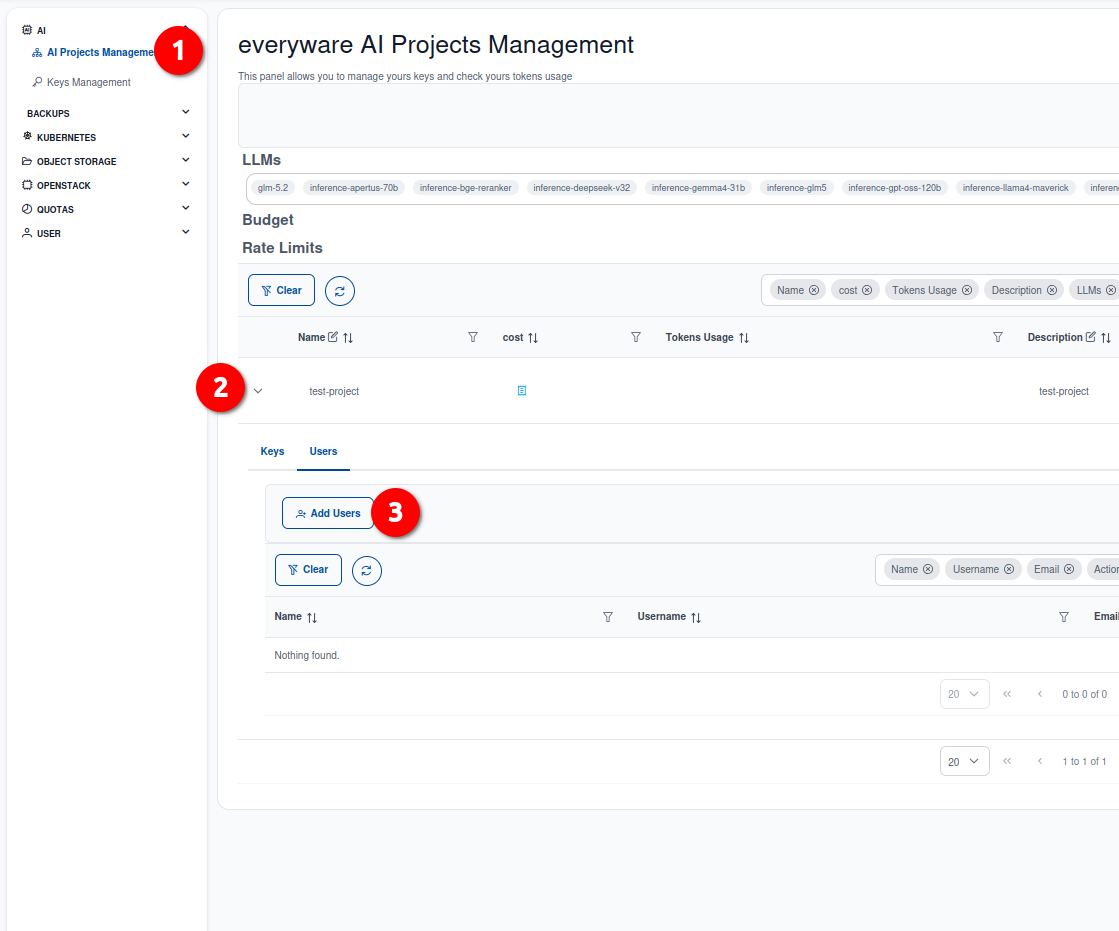
Invited users can now see the project in their AI Projects Management list and create their own API Keys inside it (see API Keys).
Users are existing portal accounts
AI Management does not create separate AI-specific users. The users you invite are the same Cloud Services Portal users managed under Organisation Management. A user can be invited to multiple AI Projects.
Key visibility depends on the key type
API Keys come in four types (see API Key Types). Inside a project, a user's Project User-bound Key is private to that user; a Project-shared Key (created by a Client Admin) is visible to all members of the project. Admins see all keys within a project. Keys are not shared between users unless they are Project-shared. See Key Visibility for details and the recommended approach for keys that several agents must share.
Editing a Project
Open the AI Project in AI Projects Management and edit it from the project view. Providers, models, budget, and limits can be adjusted after creation.
Warning
Tightening a project's budget or limits affects all keys in that project immediately. If an agent is already consuming against a key, it may hit the new cap mid-request.
Deleting a Project
Open the AI Project in AI Projects Management and delete it from the project view.
Warning
Deleting an AI Project invalidates all API Keys that belong to it. Any agent still using one of these keys will receive authentication errors immediately. Revoke or migrate keys before deleting a project that is in use.
Where consumption is shown
Budget, limits, and usage for an AI Project are only visible inside the AI panel — they do not appear in the general Usage Dashboard or Quota panel. OpenStack usage and AI usage are tracked separately.
Next Steps
- Generate an API Key — invited users create a key inside the project and use it in their agent.
- AI Platform — models and endpoints.