API Keys
An API Key (also called a Virtual Key, VK) is the credential your agents and applications use to call the LLMaaS Gateway. Keys are OpenAI-compatible and work with any SDK or tool that speaks the OpenAI REST interface. The secret has the prefix sk-bf-….
API Keys come in four API Key Types, which decide what the key is bound to, who can see it, and who can manage it. Which types you can create depends on your role.
API Key Types
| Type | Bound to | Visible to | Quota | Created by |
|---|---|---|---|---|
| Personal API Key | a User (no project) | the owner (+ Admin) | 1 per user | the user themselves |
| Project User-bound Key (private) | a User and an AI Project | only that user (+ Admin) | 1 per user per AI Project | the user in the project, or an Admin on behalf of a user |
| Project-shared Key | the AI Project | all members of the project (+ Admin) | — | a Client Admin |
| Client Key | the Client (neither user nor project) | Admins | 1 per client | a Client Admin |
Personal vs. Project User-bound
A Personal API Key is bound to your portal account and not tied to any AI Project — you can use it across projects. A Project User-bound Key lives inside a specific AI Project and inherits that project's providers, models, budget, and limits. Each user gets one Personal Key and one Project User-bound Key per AI Project they are a member of.
How the type is chosen
All four types are created from a single Create Key dialog in Key Management. The type is determined by two fields in that dialog:
| Project field (dropdown) | User-bound (checkbox) | Resulting key type |
|---|---|---|
| empty | ☑ checked | Personal API Key (your user, no project) |
| an AI Project selected | ☑ checked | Project User-bound Key (you + the project, private) |
| an AI Project selected | ☐ unchecked | Project-shared Key (the project, all members) |
| empty | ☐ unchecked | Client Key (the client, neither user nor project) |
Which combinations you can choose depends on your role
A normal user can only create keys for their own use — Personal API Key and Project User-bound Key. The combinations that produce a Project-shared Key or Client Key are only available to Client Admins. Non-admin users do not see those options in the dialog.
Prerequisites
- Personal API Key — a valid Cloud Services Portal account. No AI Project required.
- Project User-bound Key — an AI Project you have been invited to. See AI Projects — an Admin must create the project and invite you first.
- Project-shared Key — the Client Admin role.
- Client Key — the Client Admin role.
In all cases you need permission to access the AI menu. There is no separated "AI user" — your normal Cloud Services Portal account is what you use.
Create an API Key
- Go to AI → Key Management.
- Click Create Key.
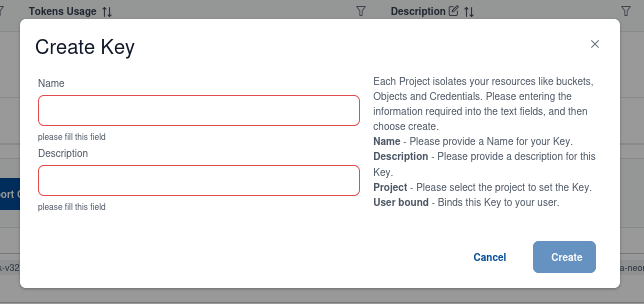
In the dialog, set the Project field and the User-bound checkbox to pick the key type — see How the type is chosen for the combinations. Each key also has its own Name and Description so you can tell keys apart later (for example to separate a production agent from a test script).
- Personal API Key — leave Project empty, keep User-bound checked.
- Project User-bound Key — select an AI Project you are a member of, keep User-bound checked. The key inherits the project's providers, models, budget, and limits, and is private to you.
- Project-shared Key — select an AI Project, uncheck User-bound. (Client Admin only.) Visible to all members of the project.
- Client Key — leave Project empty, uncheck User-bound. (Client Admin only.) Not bound to any user or project.
Key Visibility
Who can see a key depends on its type:
- Personal API Key — only the owner. Admins can list it via the admin key management (see Manage Keys (Admin)).
- Project User-bound Key — only the owning user. Admins see it when viewing the project's keys.
- Project-shared Key — all members of the AI Project, plus Admins.
- Client Key — Admins only.
This means a Project User-bound Key is private: other invited users of the same project do not see it. To share a single key across all members of a project, a Client Admin creates a Project-shared Key.
Sharing a key across several agents or users
If several agents need the same key, prefer a Project-shared Key (created by a Client Admin) over handing out a personal key to teammates. For cross-project or automation use cases that should not belong to a person, a dedicated service account under Organisation Management keeps personal keys personal and makes rotation on staff changes a single-user operation.
View the Secret
When a key is first created, its secret (sk-bf-…) is masked. You can reveal the secret at any time from the key list — either in Key Management or, for project-scoped keys, in AI Projects Management under the selected project.
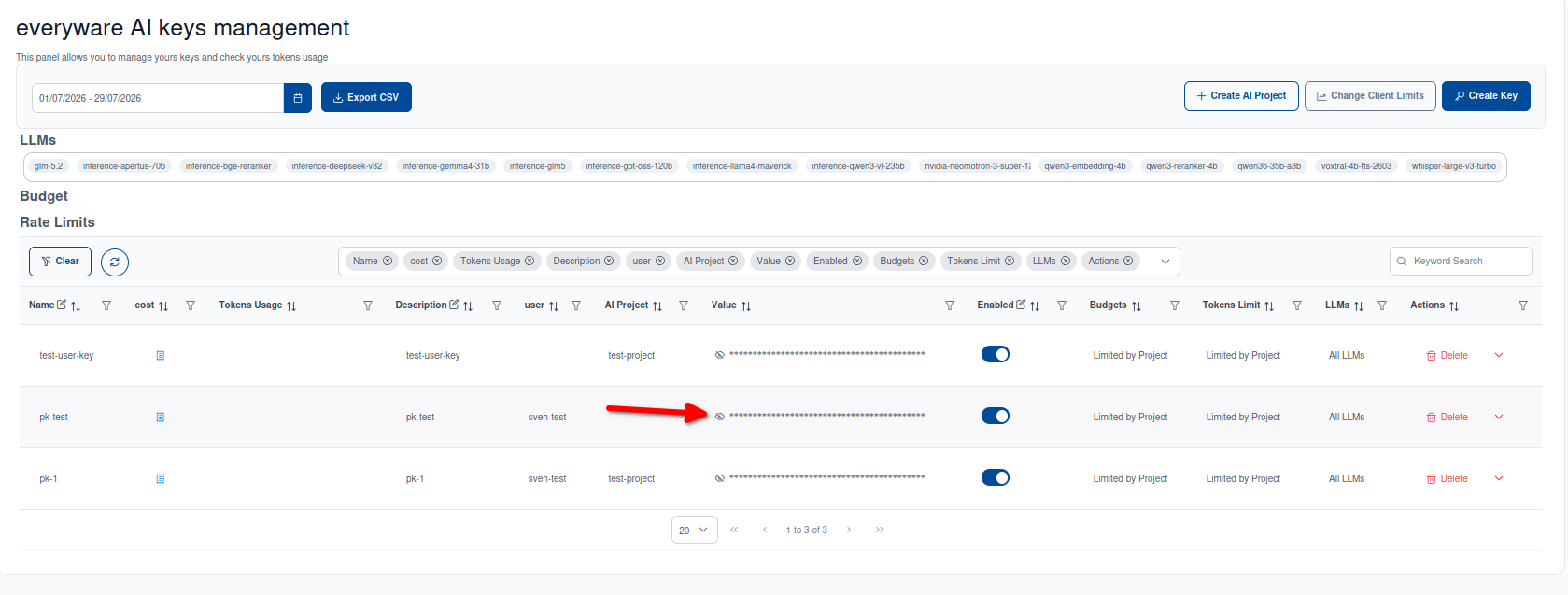
Revealable on demand
Unlike a one-time-shown token, the secret is not displayed only once. You can show it again whenever you need it. Treat it like a password: anyone who can read it can use the key within the budget and limits that apply to its type.
Warning
Copy the secret to a safe place — your password manager, a secret vault, or the environment of your agent. If you suspect it has leaked, revoke or disable the key immediately.
Using the Key in an Agent
The LLMaaS Gateway is OpenAI-compatible. Point your existing OpenAI SDK, agent, or CLI at our endpoint and set the key as the bearer token:
- Base URL:
https://ai.ewcs.ch/v1
from openai import OpenAI

client = OpenAI(
    base_url="https://ai.ewcs.ch/v1",
    api_key="sk-bf-…your-key…",
)

response = client.chat.completions.create(
    model="ew/glm-5.3-flash",
    messages=[{"role": "user", "content": "Say hello in Swiss German."}],
)
print(response.choices[0].message.content)
- Models are addressed in
provider/modelform (e.g.ew/glm-5.3-flash,anthropic/claude-opus-5-5). The providers and models available to a key are controlled by its API Key Type — an AI Project for Project User-bound and Project-shared keys, the client configuration for Client Keys. - The gateway exposes
POST /v1/chat/completions,POST /v1/embeddings,POST /v1/rerank, andGET /v1/models.
→ Full interface specification: API Reference. → Ready-to-run examples: AI Use Cases.
Usage & Audit
Per-key usage is shown inside the AI panel, on the key list where the key is managed. This is also where you can see the last use of a key.
Where usage is shown
Key usage is only visible inside the AI panel — it does not appear in the general Usage Dashboard or Quota panel.
Manage Keys (Admin)
Client Admins can manage all API Keys of their client — Personal, Project User-bound, Project-shared, and Client Keys — from AI → Key Management.
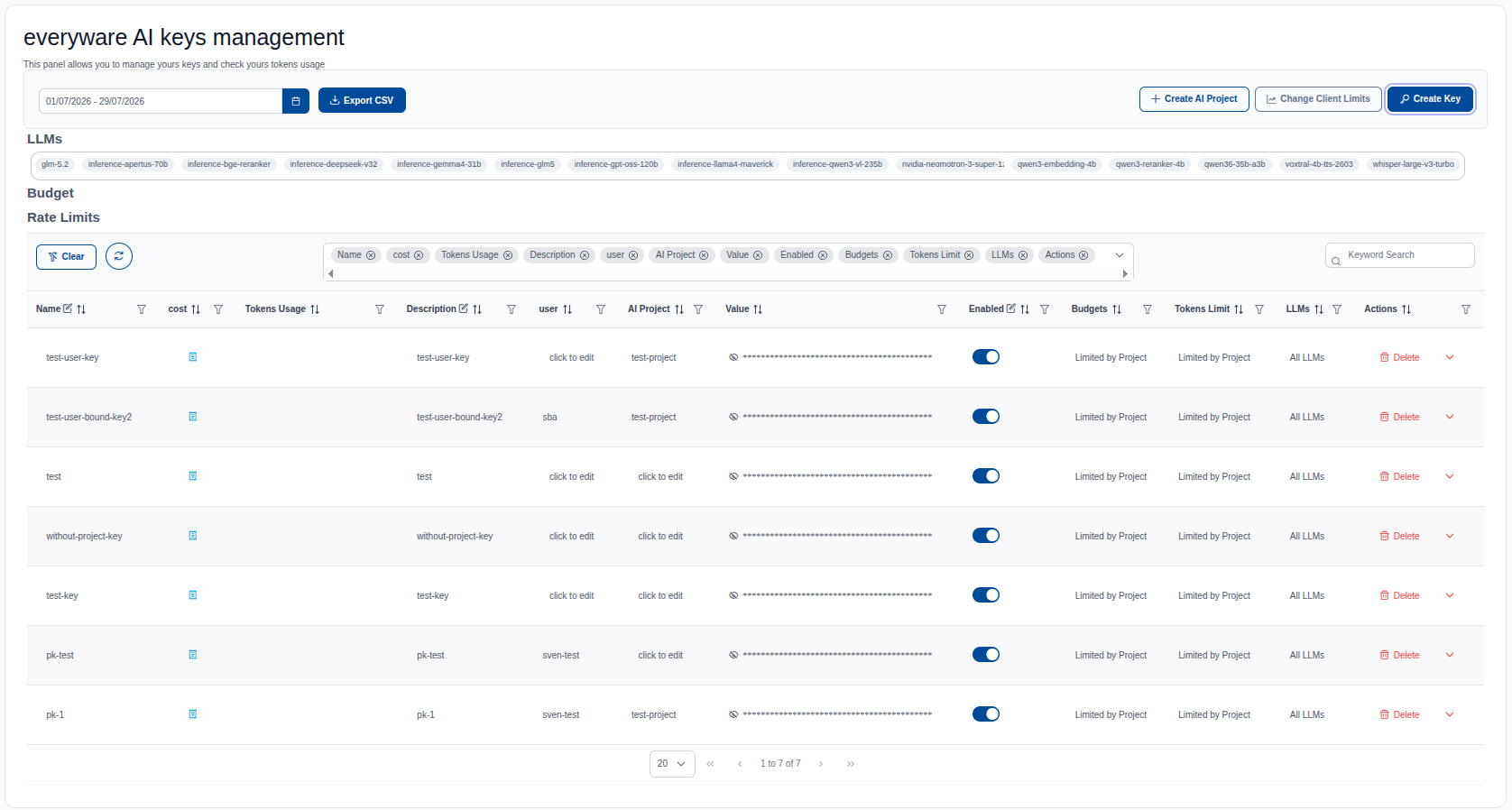
- List & Filter — list all keys of the client and filter by user and/or AI Project. Each key shows whether it is disabled.
- Remove — permanently delete a key. A removed key stops working immediately.
- Disable — temporarily deactivate a key without deleting it. A disabled key is rejected by the gateway but can be re-enabled later.
Disabled keys are auto-deleted after 45 days
A key that stays disabled for more than 45 days is automatically deleted. This operation is recorded in the audit log. If you only need to pause a key briefly, re-enable it within that window — otherwise recreate it after deletion.
Revoke and Disable
You can revoke (delete) or disable an API Key at any time from its key list in Key Management (or AI Projects Management for project-scoped keys). Admins can do this for any key of the client via Manage Keys (Admin).
Revocation takes effect immediately
A revoked or disabled key stops working immediately. Any agent still using it will receive authentication errors on its next request. Rotate to a new key first if you need to keep the agent running:
- Create a new key of the same type.
- Update your agent's configuration with the new secret.
- Confirm the agent is working.
- Revoke (or disable) the old key.
Info
Rotating keys regularly — and whenever a secret may have leaked — is the recommended way to keep AI access secure.